City map with address search - help and instructions
The wien.at online city map provides user-friendly access to a wide range of information.
The online map of Vienna can be displayed in colour, in black and white, or as a high-resolution aerial photograph. Street names and house numbers can be switched on or off in every map. A search window in the top left corner allows for quick search for any specific address or building in Vienna. Alternatively, the form-based search mode with additional options can be selected by clicking on "Advanced search". Specific map contents, such as traffic and transport information or local sights, can be selected and deselected in a separate list at the left ("Show on the map"). Whenever the settings are changed, the map section displayed will adapt immediately.
Please help us to further improve the online city map by sending us your feedback on the new version.
General navigation and operation
The online city map has a highly intuitive user interface. To pan the map, simply press the left mouse button, then drag & drop the map into the desired direction. Move the mouse wheel to adapt the map scale by zooming in (i.e. rolling the mouse wheel forward) or zooming out (i.e. rolling mouse wheel backward).
Alternatively, you can use the navigation bar in the right-hand margin of the map. Clicking on the arrows moves the map section into the corresponding direction, while the central button produces a map of the entire city. Click on the plus sign to zoom in, the minus sign to zoom out, or shift the status sign between plus and minus to adapt the map scale as needed.
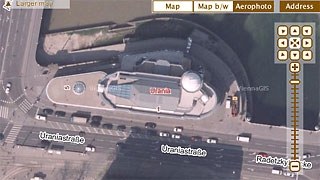
The buttons above the navigation bar allow you to select the type of map you want displayed. You can choose between "map" (general map displayed in colour), "map b/w" (map in black and white) and "Aerophoto" (aerial photograph of the city). Clicking on "Address" will show all road names (and other geographical names) as well as house numbers (including staircase numbers, highlighted in yellow).
Map content and detailed information
The list just left of the map shows all content categories that can be displayed on the map. Customise the map by selecting or deselecting individual categories - the map will immediately adapt to every change in the settings. The contents selected in the list are always displayed in the main map. Changing the content settings will not influence the map's size or the section displayed. Pan the map, or change the map scale (e.g. zoom in) to see the contents. The symbols used on the map correspond to those shown in the selection list at the left. Clicking on a specific symbol (on the map) will produce an information bubble, i.e. a small speech-bubble-shaped window with extra information on the corresponding building or location. This feature is available for most map items.
Search mode
The online city map can be searched for any given address, building or location. This means that landmarks like St. Stephen's Cathedral, Vienna Central Cemetery, the Lainzer Tiergarten wildlife preserve or Schönbrunn Palace can not only be found under the building's official address, but also by entering its common designation (e.g. "Schönbrunn"). If your search produces a single result, the corresponding map will be displayed automatically. When entering an address, it is important not to forget the space between the road name and house number. An ambiguous search will produce a list of possible results for selection. After completing a search, select "Show on the map" (at the left, below the search window) to reopen the list of content categories available.
Clicking on the link "Advanced search" directly below the search window will open a separate search template for all searchable content categories, including extra information on the individual buildings or locations. You can return to map display mode anytime, without deleting your advanced search settings.
Advanced navigation tools
The tool bar displayed in the top left margin of the map provides a number of additional navigation tools. Place the cursor directly on a symbol to see a short description of the corresponding tool.
- Pan and information: this is the default setting. It allows for panning the map (by dragging and dropping with the left mouse button) and zooming in or out (by rolling with the mouse wheel). Click on the information symbols shown on the map to open information bubbles on the respective building or location.
- Zoom in: use this tool to draw a rectangle on the map with the cursor by holding down either mouse button. When the mouse button is released, the corresponding map section will be enlarged to full map size.
- Measure distance: this tool is used for measuring the distance between two or more points on the map. Double click to terminate a measuring sequence. Placing the cursor on the distance displayed next to the last measuring point will open a small menu with the following options: removing one or all measurements, removing or moving a measuring point, or changing the display colour of the measuring results.
- Back/Next: with the arrow buttons, you can switch back and forth between the different map sections you have produced in your current session.
Special features
A number of important links is displayed above the map window:
- Feedback: opens a feedback form that allows you to express your opinion on the online city map and submit useful suggestions for its further improvement.
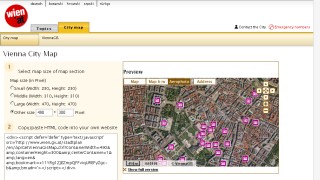
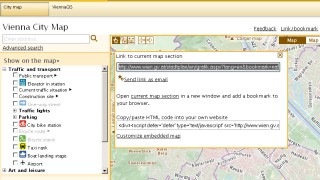
- Link/bookmark: takes you to a small window with a permanent, bookmarkable link to the current map section, and the additional option of copying the map into a different website.
- Print view: shows the print view of the current map section.
- Help and instructions: opens the help page you are presently on.
Further information
System requirements for this version of the online city map: Internet Explorer 6.0/7.0/8.0 or Mozilla Firefox version 2 or higher.
wien.at-English Edition
Contact form